 MemeMotion
How to make an AI meme video from a photo
Upload a photo, pick a video effect, and check the credit cost before generating. Watch the result and download the MP4 from My Videos.
Published Updated
What's new on this page
- Added screenshots of the live generator, a two-person walkthrough, and a checklist for reviewing your first MP4.
- Guide first published.
Start with a clear photo, pick an effect that shows the movement you want, then check the credit quote and generate. You can watch and download the finished clip in My Videos.
At a glance
| Main photo | JPG, PNG, or WebP, up to 10 MB |
|---|---|
| Scene | Keep Original or pick another stage |
| Finished file | MP4 in My Videos for seven days |
Upload a photo for the main role
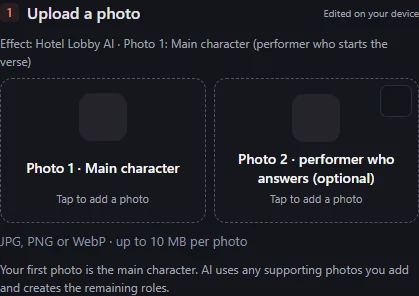
Start in the generator on the homepage or open a template page. Upload a JPG, PNG, or WebP photo up to 10 MB. For a first attempt, choose one well-lit photo with a clearly visible subject. A shot with room above the head and beside the body gives a dance routine more space than a tightly cropped face.
Let the effect carry the action. A candid picture can work well for a dinner reaction because the joke comes from the situation. For a dance with visible steps, start with a photo in which the subject’s body is easy to see. Use photos and likenesses you have permission to use.
For a recognizable duet, put one clear photo in each role you want to cast. Avoid a group selfie where the lead is hard to pick out. If you only want to choose the first performer, leave the second slot empty where it is marked optional and the generator will create the partner.
Choose a reference effect
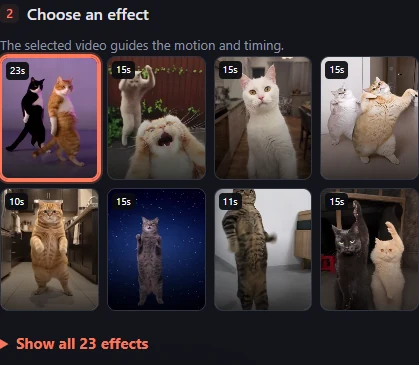
Open Choose an effect, or click Make this under a preview to select that effect. Watch the example from the opening pose through the main reaction. The clip guides the timing and movement in your render. A reference with a quick reveal works for a short reaction. A performance with two turns needs enough time for both subjects to appear.
Check how the movement begins and ends before committing. If the funny part is a turn toward the camera, choose a reference that shows the face clearly at that moment. For a pet dance, compare a solo and a duet first. Switching to a routine with a different cast can change which photo slots the generator shows.
Pick a stage that fits the joke
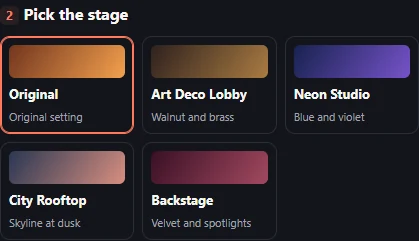
Keep the Original stage if the setting makes the joke recognizable. For example, the arrival of the check makes more sense with the restaurant setup in Never Let Her Pay AI. Try one of the other available stages when you mainly want the gesture or dance and the location matters less.
On Hotel Lobby AI, the orange booth and hanging microphone tell viewers what the two performers are doing as soon as the clip starts. For a version with a different mood, select Neon Studio and keep the same two photos. That way you can change the look without switching the reference action.
Make a first clip around one action
Decide which moment you want the viewer to notice. For a pet reaction, it might be the first clear paw movement. For a group chat joke, it might be the instant the person at the table reacts. A short clip works best when that moment has room to happen and the opening gives the viewer enough context.
Keep the reference frame for a first pass if you like how the preview is composed. If the destination calls for vertical video, select 9:16 before generating and check whether the important movement needs the sides of the frame. Try landscape when two people or a group need to stay visible together.
Check the quote and generate
Open Choose quality and length to set the model, resolution, duration, and frame shape. Choose a short duration if you want to test one action first. A longer version gives you more time for the setup or a second reaction. The quality panel updates the credit quote when you change the model, resolution, or length.
Sign in, review the selected role photos and quote, then choose Generate AI video. Wait for the generation to finish or check its status in My Videos. If the job is already queued or generating, keep checking that job so you can tell which result belongs to the settings you chose.
Download your MP4
When the video is ready, play it from My Videos and download the MP4 within seven days of completion. Watch from beginning to end before sharing. Check how quickly the subject’s action becomes clear, whether any important gesture falls outside the frame, and how the last moment reads at the chosen length.
If the action is right but feels cramped, keep the reference, photos, and stage and try a wider frame. If the scene looks right but the movement does not suit the joke, compare two effects with different timing before making another render. Changing one setting at a time makes it easier to see what improved.
Two ways to plan your first meme
For a quick group-chat hello, select Waving Cat Dance, add a photo where the cat’s face and front paws are easy to see, and keep the Original stage. Set a portrait frame if the clip will mainly be watched on a phone. In My Videos, check that the wave comes through without needing an explanation.
For a joke about a friend always having the last word, try Hotel Lobby AI. Put yourself in the opening role and your friend in the role that answers, using photos you both have permission to share. Watch the reference to see when the second gesture happens. Give that beat time in your first render, and check that the viewer can tell who is answering when you play the MP4.
Browse video effects Choose a frame size
Frequently asked questions
- Where do I see the credit cost?
- The generator displays the quote in Choose quality and length.
- Where do I find my video after I leave the generator?
- Open My Videos while signed in to check its status, play a finished clip, or download it.