 MemeMotion
How to put your photos into an AI video effect
Choose a reference clip, place your main photo in the lead role, and add supporting photos where the effect offers more roles.
Published Updated
What's new on this page
- Expanded the guide with single, duet, and group casting examples.
- Guide first published.
Photo 1 casts the lead. When the effect offers more slots, each optional photo can cast a specific supporting role. The selected reference guides movement and timing.
At a glance
| Photo 1 | Main character |
|---|---|
| Additional photos | Optional, labeled by role |
| Reference video | Guides movement and timing |
Preview the movement first
Watch the reference clip before choosing an effect. The source photo guides appearance, while the selected reference guides the movement and timing. To choose well, watch who starts the action, which subjects respond, and whether the camera stays close or shows the whole group.
For a close reaction, look for a reference where the expression is easy to see. For a dance with steps or turns, preview enough of the clip to check when the body comes into view. If your photo only shows a face, an effect built around a close-up may need less interpretation than a full-body performance.
Match each photo to its role
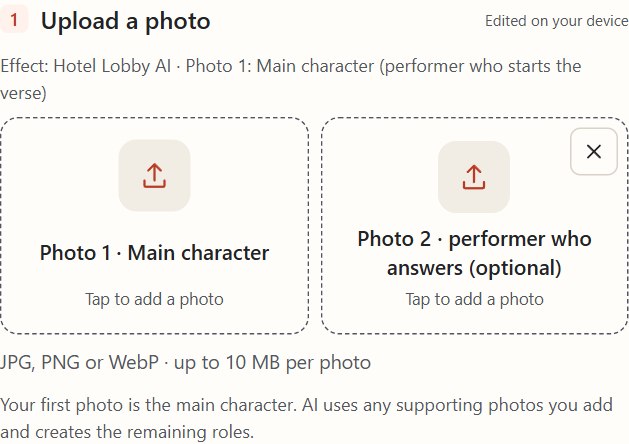
Photo 1 is the lead. When a template shows supporting slots, read the role labels before adding a photo. In Hotel Lobby AI, the first photo casts the performer who starts, and the second casts the performer who answers. Use a separate picture for each person when you want to assign the parts explicitly.
Never Let Her Pay AI gives the photos different jobs. Use the first slot for the guest who insists on paying. The optional slots are for the companion and the server. Starting with the right photo in the lead slot matters more than trying to make every source image look like it came from the restaurant.
Prepare photos that are easy to tell apart
For a person, a clear view of the face, hair, and visible outfit gives the generator more to work with. For pets, use a clear head and body view with the coat markings visible. Choose a photo where the intended subject is easy to identify, especially when there are several people or animals in the original image.
If two subjects look alike, try choosing photos with clearer differences in clothing, coat patterns, or accessories. Use an image you have permission to use in each slot. The result is generated from those references, so check the final clip to see how consistently each subject was represented.
Use the slots the selected effect offers
Single-subject effects only need the lead photo. For a duet, the additional slot lets you choose the partner yourself. On the Dancing Cat AI page, select a specific routine first so the generator can show its cast. A solo routine can have a different set of photo slots from a group dance.
You can clear an optional slot or add it back if the effect offers that role. Empty optional roles are generated by AI. If your group scene has a lead, a left performer, and a right performer, check those labels after changing the effect so you can put each photo into the intended place.
Review the selected photos
Check the visible thumbnails before generating. If a thumbnail shows the wrong person or animal, replace that photo while leaving the other roles as they are. Review the selected effect and stage, then confirm the output frame and credit quote before you submit.
When you watch the result, follow the lead first and the supporting roles second. If the lead is hard to recognize, try a clearer photo for Photo 1 while keeping the effect fixed. If the appearance reads well but the motion does not match your idea, compare a different reference with the same role count.
Check the cast again when you switch effects
A photo that works as the second performer in a duet may play a different role in a restaurant scene. For example, if you change from Hotel Lobby AI to Never Let Her Pay AI, read the slots again and decide whether that second person should be the companion. If you only want to choose the main subject, start with Photo 1 and leave the supporting slots empty.
Try Hotel Lobby AI Choose a frame size
Frequently asked questions
- Can I leave the second slot empty?
- Yes. When the slot is marked optional, AI fills in that role.
- Why does the number of photo slots vary?
- Each effect has its own cast. Check the generator’s labels after selecting an effect.